Showing posts with label Azure. Show all posts

Friday, March 30, 2018

Azure SQL Database – Automatic Index Tuning


Introduction: -

We live in an era of “Automation”.  Planes run on auto pilot mode, cars will soon be auto driven, so why not have auto indexed databases? This article will discuss the automatic index tuning feature available in Azure SQL Database.

Problem Statement:

Application development is moving at a rapid pace and its very common for application teams to develop a template database design and deliver it to multiple customers.  It is even more common in cloud where solutions are delivered as “software as a service” and it is way too challenging for application development team to analyze the workload of individual database, design specific indexes for them and tune them.

Automatic tuning in Azure SQL Database

Azure SQL Database, the cloud Platform as a service (PAAS) offering of SQL Server has attempted to address the above problem by introducing “Automatic tuning”. As of date, “automatic tuning” has the following features

·         Automatic plan correction – Plan regressions or sudden change in query plan resulting in performance degradation are tracked and last good plan available is forced. Automatic plan correction is already well explained over here

·         Automatic Index Tuning:  Automatic index tuning feature of Azure SQL Database will study the workload executed against the database, identify useful indexes and create them automatically. Automatic index tuning will also drop indexes that are unused over 93 days or any duplicate indexes present.

How to enable automatic index tuning

Once logged in to Azure Portal (portal.azure.com) one can enable the same by navigating to SQL Databases-> Click on the database -> Automatic tuning


·         Force plan -> Enables Automatic Plan Correction
        ·         Create / Drop Index -> enables automatic index tuning

Features can be enabled at server level and can be inherited at the database level as well.

TSQL Script for enabling automatic index tuning provided below
ALTER DATABASE DBName
          SET AUTOMATIC_TUNING (CREATE_INDEX = ON, 
      DROP_INDEX = ON)

Example:

To test how Auto Indexing works, following things were performed
·         A sample database with 5 tables with no indexes was created
·         10 to 15 select queries against the tables were executed repeatedly few thousand times over 3 to 4 hours
·         After one day, automatic indexing found the recommendations and rolled them out when there was less or no workload on the database.  Auto Indexing requires minimum one day of monitoring to identify recommendations
 This can be verified on Azure Portal by clicking on the “Database name” -> “Performance Recommendation”


The same can also be verified via the DMV sys.dm_db_tuning_recommendations, documented clearly over here
Key pointers of Automatic Index Tuning

·         Indexing recommendations are obtained using advanced artificial intelligence rules applied on the monitored workload. The recommendations are expected to be lot more accurate than earlier missing index recommendations from SSMS
·         The best part of the feature is it is non-blocking during the rollout of new indexes. 
·         Index changes wouldn’t be rolled out and will be postponed, if DTU usage was above 80% anytime in the last 20 minutes
·         Automatically created indexes don’t enforce any dependency on the columns. When the column with automatically created index is dropped, index is dropped as well
·         Auto created indexes can be tracked via sys.indexes – auto_created column
Learn – Adapt - Verify

One of the key features of Automatic Index tuning is the ability to monitor the impact of the changes done via automatic tuning. Azure SQL Database closely monitors the automatically created or dropped indexes and verifies if it has achieved the desired performance improvement. If it doesn’t then the change is automatically reverted to prevent any negative impact to the database. The reverted changes can be tracked from sys.dm_db_tuning_recommendations DMV as well.


Suggested enhancements


·         Automatic indexing is available only as an Azure SQL Database feature and is not available on SQL Server on premise. If would be wonderful if the feature could be extended to on premise SQL Server.
·         Automatic Index tuning should be extended to fixing fragmentation issues of the indexes as well.
Conclusion
 Automatic Index Tuning does simplify one of the major tasks of a database administrator and a developer. Automatic Index Tuning may not be 100% perfect to get the choices correct all the time but it is certainly a step in the right direction. Expect Microsoft to release more of such features in the days to come not just in indexing but also all areas of database maintenance

Sunday, December 31, 2017

Azure SQL Database - Backup

Most of you must be knowing that backup in Azure SQL Database fully automatic. After the database is created and the database is automatically backed up by Azure. One can restore to any point in time for a period of 7 days for the basic subscription and 35 days for standard and premium.

Most of the above are already known to you. But, what can be little surprising for someone learning Azure SQL Database is, one can never access backup files used for recovering the database. Meaning, you can only restore the database as another azure sql database but you can never download the automatic backup files like you would do when you configure backups on your on-premise database.

So, what do you do when you need the backup file of Azure SQL Database for reference?

Create a bacpac file backup (similar to your full back up on - premise database ) of Azure SQL Database


1) Connect to the Azure SQL Database via SSMS
2) Right click tasks-> Export -Data-Tier Application. Follow the screenshots below to manually take a backup of Azure SQL Database


So, if you need an older backup of the azure database (yesterday 8:00 am backup), then recover the older version of the database using the Azure portal to a different azure sql database and extract the bacpac file using the steps explained above.

Sunday, November 12, 2017

Adaptive Query Processing and Automatic Tuning - Introduction - 1


SQL Server 2017 and Azure SQL Database are being touted as the self learning, artificial intelligent database. One of the main reasons for the same is due to release of the following features

 1) Adaptive Query Processing

2) Automatic Tuning
Adaptive Query Processing is SQL Server's first attempt using artificial intelligence to fix poor performing queries due to incorrect cardinality estimates. Query optimizer produces better plans using "Adaptive Query Processing" which is enabled by default when one is on SQL 2017's compatibility mode (CE 140). Queries can benefit via Adaptive Query Processing in the following scenarios.

1) Adaptive Join -> Query optimizer makes a intelligent choice between Nested Loop and Hash Join in runtime

2) Memory Grant Feedback -> Query optimizer adjusts the memory granted to a query depending upon the previous run's execution results

3) Interleaved Execution -> Portion of the query is executed while generating the query plan to come with the estimates. Applies currently for Multi Statement Table Valued Functions alone

 The above scenarios and operators are likely to expand in upcoming releases or patches

 Other aspect of auto driven query tuning is "Automatic Tuning" feature. Automatic Query tuning helps in the following scenarios
 Automatic Tuning:

1) Force Last Good Plan: Attempts to fix query regression by detecting any sudden change in query performance due to plan change and forcing the last good performing plan. one can turn it on using the command below
ALTER DATABASE DBName SET AUTOMATIC_TUNING ( FORCE_LAST_GOOD_PLAN = ON );
2) Automatic Index creation and deletion: Feature available only in Azure SQL Database. By studying the workload, the database engine automatically deletes and creates indexes!!!
This is just a introduction post. As usual,will be writing a series of posts to cover the individual sections in detail.

Friday, October 27, 2017

SQL Azure Databases - Active Secondary - Failover Groups - Part 4

150th Blog Post . So, the post involves video demo :)

Previous posts on this series was about using "Geo Replication" to configure active secondary. However, it comes with few limitations like

* No transparent failover capabilities like Always on Listener

* No availability groups and group failover possible

So, Azure Failover Groups provides "Read Only" / "Read Write" connection URLs which allows applications transparent failovers. Read only and Read write workloads get different connection strings and upon failover, applications connect to the appropriate node automatically

Also, one can combine group of databases as a unit of failover and make them failover together as well, as done in Always on availability groups. 

Step by step instructions on configuring availability groups provided below

* Configure Primary Server, Secondary Server and Geo Replication as explained in http://strictlysql.blogspot.sg/2017/05/sql-azure-databases-active-secondary.html

* Click on the primary server ( not database ) and select failover groups


* Click on the add group and

          * Provide the failover group a name
          * Pick the existing database "db1" to be added to the failover group
          * Pick the existing secondary server
          * Click on create


* Once done, failover group is listed as shown below


* Click on the failover group, Read only and Read Write URLs can be seen as shown below


* To perform failover click on the failover icon. Post failover, failover group looks like the picture below


To make the understanding easier, I have recorded the video of the demo. Please take a look. Happy learning


Friday, June 9, 2017

SQL Azure Databases - Active Secondary - Failover - Part 3

Continuing on the series on SQL Azure Databases - Active Secondary, this post will explore the task of failing over to secondary.

Fairly straightforward task, just one needs to take care of few items.

Step 1: Login into portal.azure.com and click on Databases. The primary and secondary databases are listed


Step 2: Click on the primary and then click on "Geo Replication"


Step 3: Scroll down and click on the secondary as shown below


Step 4: Click on Failover as shown below


Step 5: Click "Ok" to confirm Failover


Step 6: The dotted lines between primary and secondary, showing the failover progress, turn to solid line upon completion of failover


Step 7: After failover, the replication role changes confirming the successful failover as shown below


Step 8: Secondary server accepts write operations as shown below


Few important things to know

This failover is like a DB Mirroring failover. This means application will need to change their connection strings to secondary server upon failover. Unlike, Always on Availability groups, azure geo replication explained above, doesn't support transparent application failover.

However, Azure Failover Groups (right now in preview) allows transparent failover for applications. More about that on next post :)

Saturday, May 27, 2017

SQL Azure Databases - Active Secondary - How to connect? - Part 2

As a continuation of "SQL Azure Databases - Active Secondary" series started earlier, this post will cover how to connect to a azure SQL Database primary and secondary after configuring "Geo Replication".

To some, it may sound like "what is the big deal in connecting to, after configuring it". If you are new to azure, it can take a while for you figure out how to connect and at sometimes it can turn out to be one of those annoying simple things, which refuse come off in easily :)

As described in the earlier post, we have configured the following

* Database called "rajprimary" on "rajprimarysvr" server
* Geo replicated database copy of "rajprimary" on "rajsecondary" server  


To connect to the primary or the secondary server, follow the steps provided below

Configure the firewall:


* Login to your portal.azure.com

* Click on SQL Databases on the left 


* Click on the primary / secondary databases ( as shown under replication role), depending upon the one you would like to connect to


* Click on set firewall as shown below


* Firewall settings are turned on and IP Addresses that are listed alone are allowed to access. Click on "add client IP" for allowing the machine that you are using, to connect to the azure database. 


* You may add other client IP Addresses to, if they are to connect to the database. Click on save after adding.


Connect to the database

* Start sql server management studio on the machine you are logged on, and connect to ".database.windows.net". In this case it would be rajprimarysvr.database.windows.net

 if you are not sure of your database servername, you may look at by clicking on "sql databases" -> "databasename" -> "Properties"

 * Provide the user account and password used while setting up the server

Upon connecting, one would notice that only database related components are visible. Server related components like SqlAgent, Server Error logs are not seen as we are using "Sql database" service on azure.


Same steps can be repeated for secondary server too. More on Azure - Geo replication in upcoming posts. 

Sunday, May 7, 2017

SQL Azure Databases - Active Secondary - How to configure? - Part 1

Dear all,

I have taken the azure dive at last :)
In case if you are new to azure, azure is the Microsoft cloud platform service, offering lots of services for handling data platform tasks. There are tons and tons of material on it and perhaps you can get a good introduction on the following links - here and here

This post is about SQL Azure Database - a service (a PAAS service ) which allows one to host just a database in cloud and a feature of it called "active secondary". "Geo Replication" - Active Secondary is a feature in SQL Azure in premium service tier ( similar to our enterprise edition but certainly not as costly :) ), which synchronizes data asynchronously to another server (either in the same geographical location or different ) and allows one to run read only queries to it.

In my opinion, the below specifications are perhaps the most common requirement of most modern day mid size applications.

  •  A database with good performance to store and retrieve data
  • A simple disaster recovery / high availability solution
  • Readable secondary if possible

All these with a really affordable cost ( will discuss that part soon ) , just in few clicks is what makes SQL Azure tick. This post will run thro the details on how to configure it.

Pre requisite:

1) Grab a Microsoft Azure subscription :)

 Demo :

Now for the step by step  "how to do" screenshots :)

1) Login to portal.azure.com and Click on SQL Databases -> Click on Create SQL Database


2) Provide the server name. Though one pays only for the database, one just needs to create a server to host the database. Server will be maintained by azure and no charges are applicable for the server while using  “sql azure database” service.


Provide unique names for
·         Database name
·         Resource group ( more about it later )
·         Server name

 3) Click on "Configure required settings" and provide Server Details to be provided as shown below
4) Set the service level to "Premium"
One needs to pick Premium to have readable secondary
5) Click on the create database to complete primary setup. Creation takes few minutes


6) Configure GEO replication - secondary

Once the notification bar indicates that the primary has been created, click on sql databases to find the primary database created.
Pick “Geo Replication” as shown below


7) Configure GEO Replication

The screen below allows one to pick the geographical location of the secondary server. If one needs lesser latencies, closer locations to primary are preferred


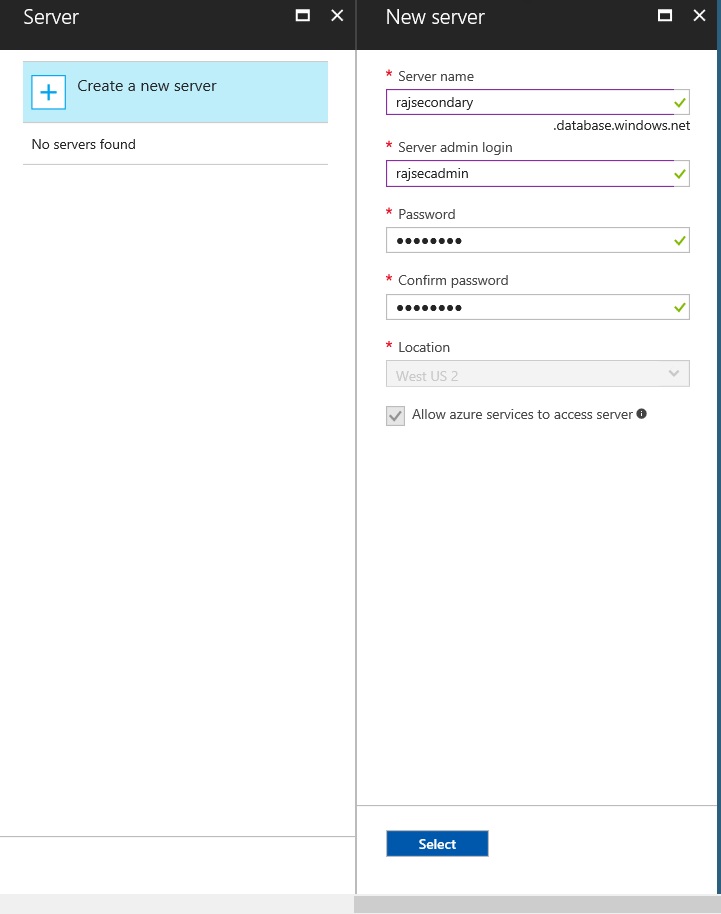
8) Once location is picked, one is prompted to fill in the rest of the details of secondary server
 9) Create a secondary server similar to primary, by providing details like servername and admin login name
10) Create the secondary server


Upon clicking ok, Primary and secondary starts to synchronize as shown below

11) Synchronization completion
The completed tick marks will indicate synchronization completion as shown below
Synchronization can take few minutes or longer depending upon data size. Once complete, click on SQL Databases on Azure Portal to verify as shown below
With that the setup of active secondary on sql azure database is complete. Pretty simple as it takes a few clicks and needs almost zero pre requisites. A similar setup on "on Premises" would take days to months in most places.
 That's a lengthy first post on SQL Azure - Active Secondary.  On subsequent posts, I will cover how to connect to primary and secondary, failover , monitoring and how applications can benefit via readable secondary and of course the cost involved as well.

Sunday, April 30, 2017

Data Channel Interview - 06 - Manohar Punna on SQL Azure Migrations

Here we go for the 6th interview on #DataChannel. Manohar Punna, MVP and Data Platform Geeks President discusses "Migrations to SQL Azure" on #DataChannel. Manohar, in this interview provides valuable inputs on migrating to SQL Azure, challenges involved and methods to monitor and size SQL Azure databases. Happy watching !!!