Tuesday, August 4, 2015

Hekaton - In Memory OLTP - Getting Started / FAQ :- 1

SQL Server 2014 introduced a major feature called "In Memory - Hekaton" Tables, in which even the fundamental concepts of SQL Server Database Transaction Processing have been revamped. Starting from today, I will be doing a series of posts, explaining Hekaton tables and its intricate details, features, pros and cons and just about anything on Hekaton.

As a start, I thought of making this one a FAQ style intro.


1) What is Hekaton - In Memory tables?
Tables and Indexes are placed in memory. Never pushed out of memory. Hekaton aims to provide a performance boost of 100 times. Customers with 25 to 30 times performance improvement have been reported


2) Are all tables of the database in the memory?
No. The one's that are specified as "in Memory" during creation are placed in memory

3) Is it similar to DBCC Pintable of SQL 2000?No. Though both technologies place the data in memory, the storage structures and transaction processing concepts are entirely different

4) What is different about transaction processing? Transactions on Hekaton tables don't use locks or latches at all. It is a lock and latch free architecture

5) What do you mean by "storage structures"?
Instead of storing data as pages, they are stored as "rows" in memory. It helps in providing "latch free" transaction processing

6) Do Hekaton tables persist after restart? Are they written to disks?
Yes. They are written to disk just like disk based tables but logging, checkpoint and recovery processes are entirely different and improved

7) Do they adhere to ACID properties?
Yes. All the properties of Atomicity, Consistency, Isolation and Durability are met just like disk based tables


8) Sounds too good to be true? Are there any restrictions? Drawbacks?
Many many restrictions and drawbacks. If applications can be redesigned / adjusted to use hekaton tables they can gain rich dividends.

9) Is it something I can just turn on in my Database server to make my application faster?
No. Usage of in memory tables, involves changes at design and development phase of the application. Tables redesigned, stored procedures rewritten, application carefully planned and tested..

10) Is it available at all editions?
Only Enterprise

Guess a good appetizer for a heavy meal :) Watch this space for a series of posts on more , more and more details on "Hekaton"
 

Friday, May 29, 2015

Detach and Attach All User Databases


Sometimes you are in a scenario where you need to transfer a large number of databases from one server to another. If you decide to perform a detach of all ( or majority) of databases, then the following script can be handy.
 
Script for Detach Operation 
 
SELECT DISTINCT 'use master;' + Char(10) + 'GO' + Char(10)
                + 'ALTER DATABASE ['
                + CONVERT(VARCHAR(500), Db_name(database_id))
                + '] '
                + 'SET  SINGLE_USER WITH ROLLBACK IMMEDIATE'
                + Char(10) + 'use master;' + Char(10) + 'GO'
                + Char(10)
                + 'EXEC master.dbo.sp_detach_db @dbname = N'
                + ''''
                + CONVERT(VARCHAR(500), Db_name(database_id))
                + '''' + ';' + Char(10) + 'GO' + Char(10)
FROM   master.sys.master_files
WHERE  Db_name(database_id) NOT IN ( 'master', 'model', 'msdb', 'tempdb' )
 

The script generates the script required for detaching the databases. On the where clause, one can exclude any databases if required. The script needs to be run after setting the "Result to Text" Option in SSMS. "Result to Text" will help us to copy the script generate keeping the line breaks and format intact. "Result to Text" can be set from "Query->Result to->Text"

Script for Attach Operation

The following will generate a script to attach the detached databases. Make sure you run the script on the source server before you detach the databases. Because, once you detach the databases, databases wont be present in the server for the script to generate the attach script
 
The script makes an important assumption. The script assumes that each database contains only one data file and one log file. If you have databases with more than one data or log file, please handle them manually or separately. Also, the script also assumes that source and destination server will have the same path. If the path of the data and log files are to be different, you may perform a find and replace on the script generated. Like before, set the SSMS result grid to text before running the script to keep the formatting intact.

 
SELECT DISTINCT 'use master;' + Char(10) + 'GO' + Char(10)
                + 'CREATE DATABASE ['
                + CONVERT(VARCHAR(500), Db_name(x.database_id))
                + ']' + ' ON ' + Char(10) + '( physical_name = N'
                + '''' + x.physical_name + '''' + '),' + Char(10)
                + '( physical_name = N' + '''' + y.physical_name
                + '''' + ')' + Char(10) + ' FOR ATTACH' + Char(10) + 'GO'
FROM   master.sys.master_files x,
       master.sys.master_files y
WHERE  Db_name(x.database_id) NOT IN ( 'master', 'model', 'msdb', 'tempdb' )
       AND x.database_id = y.database_id
       AND x.physical_name LIKE '%mdf' 

       AND y.physical_name LIKE '%ldf'


Friday, May 22, 2015

DDL Auditing - Article on SQL Server Central

My article on SQL Server Auditing has been published on www.SQLServerCentral.Com. Article discusses how default trace can be used effectively in performing light weight auditing. Link provided below

http://www.sqlservercentral.com/articles/Audit/124740/
 

Monday, May 27, 2013

How to Size the SQL Server Memory & Why is it important?

The following blog post has 2 objectives.

 1) How to size the memory correctly ( or atleast being close to correctly )
 2) Why is it important to size the memory ( & not leave it default after installation )


First let me address item 2.

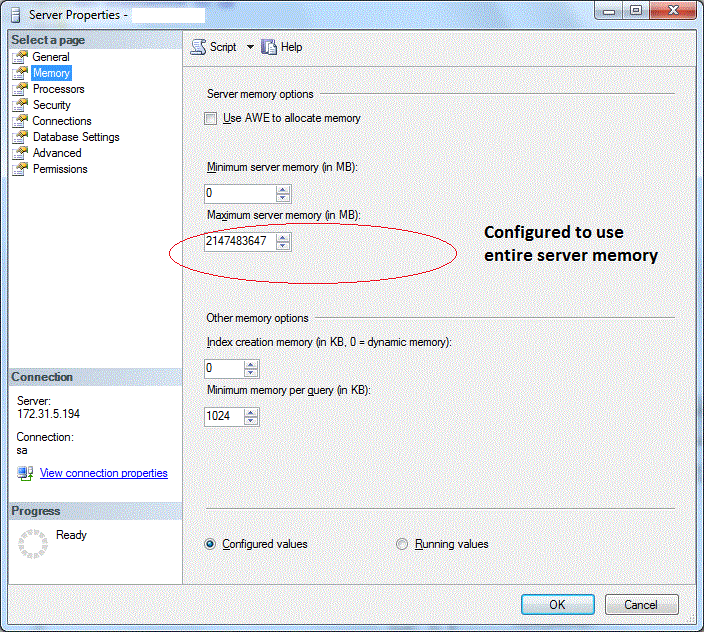
Setting a upper limit to the memory that SQL Server can use is termed as sizing memory on SQL Server.One of the common mistakes done on SQL Server Database Server is not sizing the memory. By default, after a typical installation, SQL Server is not set any upper limit on the amount of memory it can use. In other words, after a default installation, SQL Server is configured to use any amount of memory that is available on the Server. For ex ., if you have 32 GB RAM server and set up SQL Server, by default settings SQL Server is allowed to use the entire 32 GB. After a default installation, the memory setting of a server looks like the picture below.

The number "2147483647" just implies SQL Server has no upper limit and will use all the memory on the server.

      As I explained previously over here, SQL Server by design uses all the memory that is allocated to it. For ex., If SQL Server is allocated 26 GB of RAM ( out of say 32 GB on the server ), it utilizes entire 26 GB. SQL Server is designed in such a way, so that it reduces the need to read the disk frequently and leverages maximum on the memory allocated to it.

    So, why is it bad not to configure a upper limit? The reason is as SQL Server starts using the memory, its memory utilization goes on increasing ( by design as explained above ) day by day and at one point will leave very little memory for Windows Operating system to function. Windows Operating system requires adequate memory for healthy functioning of the server. When SQL Server has no upper limit, SQL Server consumes all the memory on the server, leaves operating  system to starve, bringing slowness to overall server. Usually under such circumstances, the memory utilization is over 97 or 98% with almost 90% used by SQL Server.

   When the Operating system experiences memory pressure, though SQL Server may be functioning as usual, physically perfoming any operation on the server ( logging in to the server, copying files, opening sql server client tools  etc ) may be extremely slow. Prolonged persistance of the problem ( for a few days to a week ), can result in a unexpected shutdown / restart of the server. Like many of Microsoft problems, after restart the problem vanishes for a while and comes back once memory utilization increases again.

  Now for the second part of the post. How to Size the memory?

    Though sizing the memory accurately is a task to be done meticulously taking quite a few parameters into account, I stumbled upon a dummies guide to configure the memory needed for SQL Server and OS to function smoothly.The article written by Jonathan Kehayias, a industry expert, provides a simple formula in layman terms, with which you ensure you have configured enough memory for the OS & SQL to run smoothly. Please refer to the article here.

   Brief explanation of the technique to size the memory is given below. The amount of memory to be given to Operating System

  1.  1 GB of memory reserved to Operating System
  2.  1 GB each for every 4 GB in 4 to 16 GB
  3.  1 GB each for every 8 GB in more than 16 GB.
ie., if you have a 32 GB RAM Database Server, then memory to be given to Operating System would be

  1. 1 GB, the minimum allocation +
  2. 3 GB, as 4 to 16 GB has 12 GB and 12 Divided by 4 GB ( each 4 GB gets 1 GB ) is 3GB +
  3. 2 GB, as 16 to 32 GB has 16 GB and 16 divided by 8 ( each 8 GB after 16 GB gets 1 GB ) is 2 GB
So in total for a 32 GB server, 7 GB will be reserved for the Operating System. This implies maximum memory allocated to SQL Server should be 25 GB. Similarly, for a 64 GB Server, 10 GB should be reserved for the Operating System & 54 GB should be allocated for SQL Server.

Above method ensures Operating System has enough memory to function smoothly and doesnt starve for memory.One may attempt to increase the max memory allocation to SQL Server more than what is recommended by the technique above when SQL Server internally is facing memory pressure. However, by doing so, one needs to ensure, Operating System doesn't starve for memory. The above technique of sizing the memory is sufficient for both OS & SQL in most of the cases.

To conclude, as a DBA,it is extremely important to ensure upper limits for memory is configured for SQL Server to prevent sudden performance issues.

Thursday, May 16, 2013

Xp_readerrorlog in SQL Server 2012


I have always been a big fan of Xp_readerrorlog. The simple reason is that it much faster to read errorlog using the script compared to using SSMS. xp_readerrorlog gives more options to filter the log for specific dates or containing specific string etc

In SQL Server 2012, xp_readerrorlog has undergone a minor change. if you use xp_readerrorlog as used before you may encounter the following error

for ex: -
 
EXEC master.dbo.Xp_readerrorlog
  0,
  1,
  '',
  '',
  '20130502 00:00',
  '20130503' 


throws a error  saying

Msg 22004, Level 12, State 1, Line 0
Error executing extended stored procedure: Invalid Parameter Type


If you are like me, who likes to capture the results of errorlog into a table then you may get a different error.

for ex:
 
INSERT INTO #read_error_log
EXEC master.dbo.Xp_readerrorlog
  0,
  1,
  '',
  '',
  '20130502 00:00',
  '20130503' 


Msg 0, Level 11, State 0, Line 0
A severe error occurred on the current command. The results, if any, should be discarded.


The reason for the error is that the third and the fourth parameter, to be passed as a search strings strictly accepts nvarchar Datatype. Adding the letter 'N'; makes the parameter into nvarchar as shown below .
 
EXEC master.dbo.Xp_readerrorlog
  0,
  1,
  N'',
  N'',
  '20130502 00:00',
  '20130503' 


The script provided below will help one read the error log quickly and effectively. The script is similar to the one shared in this blog previously over here. Instead of using sp_readerrorlog, the script below uses xp_readerrorlog with additional parameters which makes it even more effective. sp_readerrorlog doesn't provide time based filters (6th & 7th parameters) which are the most important filters while reading errorlog.
 
CREATE TABLE #read_error_log
  (
     logdate      DATETIME,
     processinfo  VARCHAR(200),
     errorlogtext VARCHAR(max)
  )

INSERT INTO #read_error_log
EXEC master.dbo.Xp_readerrorlog
  0,
  1,
  N'',
  N'',
  '20130502 00:00',
  '20130503'

SELECT *
FROM   #read_error_log
ORDER  BY logdate DESC

TRUNCATE TABLE #read_error_log

DROP TABLE #read_error_log 

Friday, March 1, 2013

When was the last successful backup?

What is the fastest and perhaps easiest way to find the last successful database backup?
Just right click on the Database on pick properties on the management studio.


On top of window the last full backup completion time and log backup completion time is shown.
This is perhaps the simplest way of finding the success of a daily backup without even typing a command.

Sunday, May 20, 2012

SQL Server Memory Usage - Task Manager


Another question I have answered 100s of times to Non SQL folks. "SQLServr.Exe is consuming 80% of memory. Can you please help to reduce the memory utilization to less than 50% and check whats the problem with SQL ? "

If you are a DBA, I guess you would have faced the question many times. Let me explain the response to such a question in the post below.

              Usually, SQL Server utilizes as much as RAM that is available on the server. This behavior is not a bad thing and has been specifically designed to be so. Initially, when a SQLServr.EXE started ( ie., when SQL Service is started ) , SQL Server consumes just a few MB of RAM. As the SQL Server starts getting utilized or when queries are getting fired and result sets are returned, the memory utilization starts increasing. When a query is executed, SQL Server retrieves data pages from the disk, loads them into memory ( RAM ) , performs the processing and returns the result set. As the data pages are getting loaded to the memory, the memory utilization increases. After the query execution completes, SQL Server doesn't release the memory by flushing data pages loaded. SQL Server retains them on the memory so that the next time when the same or similar query is executed, SQL Server need not fetch the data pages from the disk and instead directly fetch it from RAM, which would make the query execution much faster.

           So a Production Server in use for few days or weeks ( depending upon its usage or RAM available), is expected to use most of the memory available in the server. On 64 BIT database server, SQL Server is free to use the entire memory available while on a 32 bit database server, SQL server can use only up to 50% of RAM if AWE is not enabled. Usually, the windows operating system consumes 1 GB of RAM at least. So normally on 64 BIT server, one can allocate, 75 to 80% of RAM to SQL Server, 1 GB for the operating system and the rest for other process on the server. Even if there are no other process on the server, it is better to have a few GB of RAM left so that there is no tussle for memory between SQL Server and Windows.

        One can allocate memory to SQL Server from Management Studio. Right click on the registered server on the management studio, pick Memory tab. Set the amount of memory in KB you would like to allocate to SQL Server Process. Click OK and the maximum limit for memory utilization is set. The above operation doesn't require a service restart.


             Coming back to question, the above details explain why SQLServr.exe on the task manager is having a high memory utilization and why it absolutely normal to have that. If SQL Server's memory allocation is reduced to below 75%, then it can hurt SQL Servers performance as queries will more frequently require to fetch data from disk instead of memory. So it is good to have 75 - 80% allocated to SQL Server and normal to have a 85 to 90% overall memory utilization on DB Server.